Wednesday, April 6, 2011

Virtual memory


What is Virtual Memory?

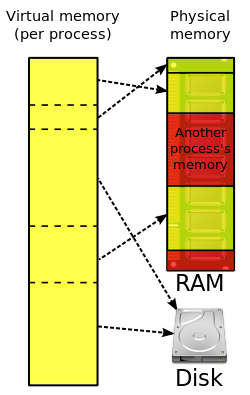
A program instruction on an Intel 386 or later CPU can address up to 4GB of memory, using its full 32 bits. This is normally far more than the RAM of the machine. (The 32nd exponent of 2 is exactly 4,294,967,296, or 4 GB. 32 binary digits allow the representation of 4,294,967,296 numbers — counting 0.) So the hardware provides for programs to operate in terms of as much as they wish of this full 4GB space as Virtual Memory, those parts of the program and data which are currently active being loaded into Physical Random Access Memory (RAM). The processor itself then translates (‘maps’) the virtual addresses from an instruction into the correct physical equivalents, doing this on the fly as the instruction is executed. The processor manages the mapping in terms of pages of 4 Kilobytes each - a size that has implications for managing virtual memory by the system.


What are Page Faults?

Only those parts of the program and data that are currently in active use need to be held in physical RAM. Other parts are then held in a swap file (as it’s called in Windows 95/98/ME: Win386.swp) or page file (in Windows NT versions including Windows 2000 and XP: pagefile.sys). When a program tries to access some address that is not currently in physical RAM, it generates an interrupt, called a Page Fault. This asks the system to retrieve the 4 KB page containing the address from the page file (or in the case of code possibly from the original program file). This — a valid page fault — normally happens quite invisibly. Sometimes, through program or hardware error, the page is not there either. The system then has an ‘Invalid Page Fault’ error. This will be a fatal error if detected in a program: if it is seen within the system itself (perhaps because a program sent it a bad request to do something), it may manifest itself as a ‘blue screen’ failure with a STOP code: consult the page on STOP Messages on this site.

If there is pressure on space in RAM, then parts of code and data that are not currently needed can be ‘paged out’ in order to make room — the page file can thus be seen as an overflow area to make the RAM behave as if it were larger than it is.


What is loaded in RAM?

Items in RAM can be divided into:

  • The Non-Paged area. Parts of the System which are so important that they may never be paged out - the area of RAM used for these is called in XP the ‘Non-Paged area’. Because this mainly contains core code of the system, which is not likely to contain serious faults, a Blue Screen referring to ‘Page Fault in Non-Paged area’ probably indicates a serious hardware problem with the RAM modules, or possibly damaged code resulting from a defective Hard disk. It is, though, possible that external utility software (e.g. Norton) may put modules there too, so if such faults arise when you have recently installed or updated something of this sort, try uninstalling it.
  • The Page Pool which can be used to hold:
    • Program code,
    • Data pages that have had actual data written to them, and
    • A basic amount of space for the file cache (known in Windows 9x systems as Vcache) of files that have recently been read from or written to hard disk.

Any remaining RAM will be used to make the file cache larger.


Why is there so little Free RAM?

Windows will always try to find some use for all of RAM — even a trivial one. If nothing else it will retain code of programs in RAM after they exit, in case they are needed again. Anything left over will be used to cache further files — just in case they are needed. But these uses will be dropped instantly should some other use come along. Thus there should rarely be any significant amount of RAM ‘free’. That term is a misnomer — it ought to be ‘RAM for which Windows can currently find no possible use’. The adage is: ‘Free RAM is wasted RAM’. Programs that purport to ‘manage’ or ‘free up’ RAM are pandering to a delusion that only such ‘Free’ RAM is available for fresh uses. That is not true, and these programs often result in reduced performance and may result in run-away growth of the page file.


Where is the page file?

The page file in XP is a hidden file called pagefile.sys. It is regenerated at each boot — there is no need to include it in a backup. To see it you need to have Folder Options | View set to ‘Show Hidden and System files’, and not to ‘Hide Protected mode System files’.

In earlier NT systems it was usual to have such a file on each hard drive partition, if there were more than one partition, with the idea of having the file as near as possible to the ‘action’ on the disk. In XP the optimisation implied by this has been found not to justify the overhead, and normally there is only a single page file in the first instance.


Where do I set the placing and size of the page file?

At Control Panel | System | Advanced, click Settings in the “Performance” Section. On the Advanced page of the result, the current total physical size of all page files that may be in existence is shown. Click Change to make settings for the Virtual memory operation. Here you can select any drive partition and set either ‘Custom’; ‘System Managed’ or ‘No page file’; then always click Set before going on to the next partition.


Should the file be left on Drive C:?

The slowest aspect of getting at a file on a hard disk is in head movement (‘seeking’). If you have only one physical drive then the file is best left where the heads are most likely to be, so where most activity is going on — on drive C:. If you have a second physical drive, it is in principle better to put the file there, because it is then less likely that the heads will have moved away from it. If, though, you have a modern large size of RAM, actual traffic on the file is likely to be low, even if programs are rolled out to it, inactive, so the point becomes an academic one. If you do put the file elsewhere, you should leave a small amount on C: — an initial size of 2MB with a Maximum of 50 is suitable — so it can be used in emergency. Without this, the system is inclined to ignore the settings and either have no page file at all (and complain) or make a very large one indeed on C:

In relocating the page file, it must be on a ‘basic’ drive. Windows XP appears not to be willing to accept page files on ‘dynamic’ drives.

NOTE: If you are debugging crashes and wish the error reporting to make a kernel or full dump, then you will need an initial size set on C: of either 200 MB (for a kernel dump) or the size of RAM (for a full memory dump). If you are not doing so, it is best to make the setting to no more than a ‘Small Dump’, at Control Panel | System | Advanced, click Settings in the ‘Startup and Recovery’ section, and select in the ‘Write Debug information to’ panel


Can the Virtual Memory be turned off on a really large machine?

Strictly speaking Virtual Memory is always in operation and cannot be “turned off.” What is meant by such wording is “set the system to use no page file space at all.”

Doing this would waste a lot of the RAM. The reason is that when programs ask for an allocation of Virtual memory space, they may ask for a great deal more than they ever actually bring into use — the total may easily run to hundreds of megabytes. These addresses have to be assigned to somewhere by the system. If there is a page file available, the system can assign them to it — if there is not, they have to be assigned to RAM, locking it out from any actual use.


How big should the page file be?

There is a great deal of myth surrounding this question. Two big fallacies are:

  • The file should be a fixed size so that it does not get fragmented, with minimum and maximum set the same
  • The file should be 2.5 times the size of RAM (or some other multiple)

Both are wrong in a modern, single-user system. A machine using Fast User switching is a special case, discussed below.)

Windows will expand a file that starts out too small and may shrink it again if it is larger than necessary, so it pays to set the initial size as large enough to handle the normal needs of your system to avoid constant changes of size. This will give all the benefits claimed for a ‘fixed’ page file. But no restriction should be placed on its further growth. As well as providing for contingencies, like unexpectedly opening a very large file, in XP this potential file space can be used as a place to assign those virtual memory pages that programs have asked for, but never brought into use. Until they get used — probably never — the file need not come into being. There is no downside in having potential space available.

For any given workload, the total need for virtual addresses will not depend on the size of RAM alone. It will be met by the sum of RAM and the page file. Therefore in a machine with small RAM, the extra amount represented by page file will need to be larger — not smaller — than that needed in a machine with big RAM. Unfortunately the default settings for system management of the file have not caught up with this: it will assign an initial amount that may be quite excessive for a large machine, while at the same leaving too little for contingencies on a small one.

How big a file will turn out to be needed depends very much on your work-load. Simple word processing and e-mail may need very little — large graphics and movie making may need a great deal. For a general workload, with only small dumps provided for (see note to ‘Should the file be left on Drive C:?’ above), it is suggested that a sensible start point for the initial size would be the greater of (a) 100 MB or (b) enough to bring RAM plus file to about 500 MB. EXAMPLE: Set the Initial page file size to 400 MB on a computer with 128 MB RAM; 250 on a 256 MB computer; or 100 MB for larger sizes.

But have a high Maximum size — 700 or 800 MB or even more if there is plenty of disk space. Having this high will do no harm. Then if you find the actual pagefile.sys gets larger (as seen in Explorer), adjust the initial size up accordingly. Such a need for more than a minimal initial page file is the best indicator of benefit from adding RAM: if an initial size set, for a trial, at 50MB never grows, then more RAM will do nothing for the machine's performance.

Bill James MS MVP has a convenient tool, ‘WinXP-2K_Pagefile’, for monitoring the actual usage of the Page file, which can be downloaded here. A compiled Visual Basic version is available from Doug Knox's site which may be more convenient for some users. The value seen for ‘Peak Usage’ over several days makes a good guide for setting the Initial size economically.

Note that these aspects of Windows XP have changed significantly from earlier Windows NT versions, and practices that have been common there may no longer be appropriate. Also, the ‘PF Usage’ (Page File in Use) measurement in Task Manager | Performance for ‘Page File in Use’ include those potential uses by pages that have not been taken up. It makes a good indicator of the adequacy of the ‘Maximum’ size setting, but not for the ‘Initial’ one, let alone for any need for more RAM.

Should the drive have a big cluster size?

While there are reports that in Windows 95 higher performance can be obtained by having the swap file on a drive with 32K clusters, in Windows XP the best performance is obtained with 4K ones — the normal size in NTFS and in FAT 32 partitions smaller than 8GB. This then matches the size of the page the processor uses in RAM to the size of the clusters, so that transfers may be made direct from file to RAM without any need for intermediate buffering


What about Fast User Switching then?

If you use Fast User Switching, there are special considerations. When a user is not active, there will need to be space available in the page file to ‘roll out’ his or her work: therefore, the page file will need to be larger. Only experiment in a real situation will establish how big, but a start point might be an initial size equal to half the size of RAM for each user logged in.


Problems with Virtual Memory

It may sometimes happen that the system give ‘out of memory’ messages on trying to load a program, or give a message about Virtual memory space being low. Possible causes of this are:

  • The setting for Maximum Size of the page file is too low, or there is not enough disk space free to expand it to that size.


  • The page file has become corrupt, possibly at a bad shutdown. In the Virtual Memory settings, set to “No page file,” then exit System Properties, shut down the machine, and reboot. Delete PAGEFILE.SYS (on each drive, if more than just C:), set the page file up again and reboot to bring it into use.


  • The page file has been put on a different drive without leaving a minimal amount on C:.


  • There is trouble with third party software. In particular, if the message happens at shutdown, suspect a problem with Symantec’s Norton Live update, for which there is a fix posted here. It is also reported that spurious messages can arise if NAV 2004 is installed. If the problem happens at boot and the machine has an Intel chipset, the message may be caused by an early version (before version 2.1) of Intel’s “Application Accelerator.” Uninstall this and then get an up-to-date version from Intel’s site.


  • Another problem involving Norton Antivirus was recently discovered by MS-MVP Ron Martell. However, it only applies to computers where the pagefile has been manually resized to larger than the default setting of 1.5 times RAM — a practice we discourage. On such machines, NAV 2004 and Norton Antivirus Corporate 9.0 can cause your computer to revert to the default settings on the next reboot, rather than retain your manually configured settings. (Though this is probably an improvement on memory management, it can be maddening if you don’t know why it is happening.) Symantec has published separate repair instructions for computers with NAV 2004 and NAV Corporate 9.0 installed. [Added by JAE 2/21/06.]


  • Possibly there is trouble with the drivers for IDE hard disks; in Device Manager, remove the IDE ATA/ATAPI controllers (main controller) and reboot for Plug and Play to start over.


  • With an NTFS file system, the permissions for the page file’s drive’s root directory must give “Full Control” to SYSTEM. If not, there is likely to be a message at boot that the system is “unable to create a page file.”

How can i create virtual memory in Windows XP

Right-Click My Computer, click Properties, then choose Advanced tab, Settings in Performance form, choose Advanced, click Change the Virtual Memory form.
You can set your PC's virtual memory there.

Monday, April 4, 2011

what is payment gateway

A payment gateway is an e-commerce application service provider service that authorizes payments for e-businesses, online retailers, bricks and clicks, or traditional brick and mortar. It is the equivalent of a physical point of sale terminal located in most retail outlets. Payment gateways protect credit card details by encrypting sensitive information, such as credit card numbers, to ensure that information is passed securely between the customer and the merchant and also between merchant and the payment processor.

How payment gateways work

A payment gateway facilitates the transfer of information between a payment portal (such as a website, mobile phone or IVR service) and the Front End Processor or acquiring bank. When a customer orders a product from a payment gateway-enabled merchant, the payment gateway performs a variety of tasks to process the transaction:

  • A customer places order on website by pressing the 'Submit Order' or equivalent button, or perhaps enters their card details using an automatic phone answering service.
  • If the order is via a website, the customer's web browser encrypts the information to be sent between the browser and the merchant's webserver. This is done via SSL (Secure Socket Layer) encryption.
  • The merchant then forwards the transaction details to their payment gateway. This is another SSL encrypted connection to the payment server hosted by the payment gateway.
  • The payment gateway forwards the transaction information to the payment processor used by the merchant's acquiring bank.
  • The payment processor forwards the transaction information to the card association (i.e., Visa/MasterCard)
  • If an American Express or Discover Card was used, then the processor acts as the issuing bank and directly provides a response of approved or declined to the payment gateway.
  • Otherwise, the card association routes the transaction to the correct card issuing bank.
  • The credit card issuing bank receives the authorization request and sends a response back to the processor (via the same process as the request for authorization) with a response code. In addition to determining the fate of the payment, (i.e. approved or declined) the response code is used to define the reason why the transaction failed (such as insufficient funds, or bank link not available)
  • The processor forwards the response to the payment gateway.
  • The payment gateway receives the response, and forwards it on to the website (or whatever interface was used to process the payment) where it is interpreted as a relevant response then relayed back to the cardholder and the merchant.
  • The entire process typically takes 2–3 seconds
  • The merchant submits all their approved authorizations, in a "batch", to their acquiring bank for settlement.
  • The acquiring bank deposits the total of the approved funds in to the merchant's nominated account. This could be an account with the acquiring bank if the merchant does their banking with the same bank, or an account with another bank.
  • The entire process from authorization to settlement to funding typically takes 3 days.

Many payment gateways also provide tools to automatically screen orders for fraud and calculate tax in real time prior to the authorization request being sent to the processor. Tools to detect fraud include geolocation, velocity pattern analysis, delivery address verification, computer finger printing technology, identity morphing detection, and basic AVS checks.


Security

  • Since the customer is usually required to enter personal details, the entire communication of 'Submit Order' page (i.e. customer - payment gateway) is carried out through HTTPS protocol.
  • To validate the request of the payment page result, signed request is often used - which is the result of the hash function in which the parameters of an application confirmed by a «secret word», known only to the merchant and payment gateway.
  • To validate the request of the payment page result, sometimes IP of the requesting server has to be verified.
  • There is a growing support by acquirers, issuers and subsequently by payments gateways for Virtual Payer Authentication (VPA), implemented as 3-D Secure protocol - branded as Verified by VISA, MasterCard SecureCode and J/Secure by JCB, which adds additional layer of security for online payments. 3-D Secure promises to alleviate some of the problems facing online merchants, like the inherent distance between the seller and the buyer, and the inability of the first to easily confirm the identity of the second.

Step 1: Configure Your Delivery Script (dsconfig.php) Open up the configuration file ds‐config.php with your favourite text editor e.g. Notepad, WordPad, TextPad, etc. Try to use the simpler text editors rather than the more sophisticated applications such as Microsoft Word to avoid data corruption (due to the auto formatting features in Word). 1.1 Setup Your Products Fill in your Product details according to the format you see in the configuration file. All you need to do is simply replace the sample data with your own. You can add or remove rows according to how many products or product variants you are selling. Format and field reference: $products[] = 'item number,item name,currency=amount,filename,link lifetime (in seconds)';

Thursday, March 10, 2011

अब ये हैं दुनिया के 10 सबसे दौलतमंद शख्स


फोर्ब्स ने 2011 की अरबपतियों की नई लिस्ट जारी कर दी है लेकिन हैरत की बात यह है कि इस बार मुकेश अंबानी इस बार रईसों की लिस्ट में काफी नीचे पहुंच गए हैं दुनिया के दस दौलतमंद लोग इस प्रकार हैं...
कार्लोस स्लिम—71 वर्षीय मैक्सिकों के व्यापारी कार्लोस स्लिम 74 अरब डॉलर की दौलत के साथ दुनिया के सबसे अमीर व्यक्ति हैं। स्लिम अभी भी अपने चालीस साल पुराने मकान में रहते हैं और एक पुरानी मर्सिडीज कार चलाते हैं। लेकिन इतना धनवान होने के बावजूद स्लिम ने दूसरे अरबपतियों की तरह अपनी दौलत दान करने की बात कभी नहीं कहीं।

बिल गेट्स—माइक्रोसॉफ्ट के संस्थापक बिल गेट्स रईसी के मामले में दूसरे नंबर पर हैं उनकी कुल संपत्ति 56 अरब डॉलर है। 56 वर्षीय बिल गेट्स ने अपनी आधी दौलत दान करने की बात कही है यह दौलत सामाजिक कार्यो में लगाई जाएगी।

वारेन बफे— 50 अरब डॉलर की दौलत के साथ वारेन वफे दुनिया के तीसरे सबसे अमीर व्यक्ति हैं। 80 वर्षीय वारेन बफे अपनी 99 फीसदी कमाई मिलिंडा गेट्स फाउंडेशन को दान करेंगे यहा फाउंडेशन सामाजिक सरोकारों से जुड़े काम करता है। वह 8 अरब डॉलर पहले ही दान कर चुक हैं।

वर्नाड अर्नोल्ट—फ्रांस के 41 वर्षीय व्यवसायी वर्नाड अर्नोल्ट रईसी के मामले में दुनिया में चौथे पायदान पर हैं। अर्नोल्ट की कंपनी दुनिया की सबसे बड़ी लग्जरी गुड्स बनाने वाली कंपनी है।

लेरी एलिसन—अमेरिका के लेरी एलिसन के पास 39.5 अरब डॉलर की संपत्ति है और यह पांचवे सबसे रईस व्यक्ति हैं। लेरी एलिसन ओरेक्कल के फाउंडर और सीईओ हैं।

लक्ष्मी मित्तल—भारतीय मूल के लंदन बेस्ड लक्ष्मी मित्तल दुनिया की सबसे बड़ी स्टील कंपनी आर्सेलर मित्तल के मालिक हैं 60 वर्षीय मित्तल के पास 31.1 अरब डॉलर की संपत्ति है।

एमानसियो ओरटेगा—स्पेन के 74 वर्षीय व्यवसायी 31 अरब डॉलर की संपत्ति के मालिक हैं और दुनिया के सातवें सबसे दौलतमंद व्यक्ति हैं।

एइक बटिस्टा—जर्मन कॉलेज ड्रापआउट बटिस्टा ब्राजील के सबसे रईस व्यक्ति हैं और विश्व के आठवें सबसे अमीर शख्स हैं।

मुकेश अंबानी—भारत के सबसे रईस शख्स मुकेश अंबनी की दौलत में जबर्दस्त गिरावट देखने को मिली है। 53 वर्षीय मुकेश अंबानी की कुल दौलत 27 अरब डॉलर है और मुकेश दुनिया के नौंवे सबसे अमीर शख्स हैं।

क्रिस्टी वाल्टन एंड फैमिली--- अमेरिका की क्रिस्टी वाल्टन जॉन वाल्टन की विधवा हैं, जॉन वाल्टन, वालमार्ट के फाउंडर सेम वाल्टन के बेटे थे।


बिल गेट्स ने दान कर दिया दुनिया के सबसे दौलतमंद होने का खिताब


बिल गेट्स अब बड़े पैमाने पर अपनी संपत्ति दान कर रहे हैं और पिछले साल उन्होंने अपनी आय का एक तिहाई दान कर दिया था। उनकी चैरिटेबल संस्था का नाम है बिल ऐंड मिलिंडा गेट्स फाउंडेशन और यह संस्था दुनिया भर में स्वास्थ्य और विकास तथा अमेरिका में शिक्षा के लिए काम करती है।

एक जानकार का कहना है कि पिछले साल बिल गेट्स ने 28 अरब डॉलर दान कर दिए थे। फिलहाल गेट्स की संपत्ति 49 अरब डॉलर की है और वह दूसरे नंबर पर हैं। पहले नंबर पर हैं मेक्सिको के कार्लोस स्लिम जिनके पास है 60 अरब डॉलर की। वारेन बफे तीसरे नंबर पर हैं
जिनके पास हैं 47 अरब डॉलर।

अगर बिल गेट्स लगातार दान नहीं करते होते तो उनके पास 88 अरब डॉलर की संपत्ति होती। भले ही वह अब दुनिया के सबसे दौलतमंद इंसान नहीं हैं लेकिन दुनिया के सबसे बड़े दानी जरूर हैं।

इस साल भी गेट्स दुनिया के तीन सबसे दौलतमंद लोगों में होंगे, इसमें कोई शक नहीं है।

Friday, March 4, 2011

Some Interview questions for IT Job

Entry-Level Positions

Network Administrator Positions

System Administration Position

General HR Questions

77. What would your coworkers say about you?

Thursday, February 24, 2011

Boss to English Translation(cool & funny)

What your boss says and what he really means

Do you ever feel a trip to your boss’s office is like a trip to a foreign country? Nice view, but no speaka dee English? In order to ensure that none of the buck passing, put- downing, or one- upping is lost in translation, make sure to bring along this cheat sheet so you know what the big enchilada is really trying to say.

“Great job on the report!” Translation: “I’m taking credit for your work.” “I have to attend an off-site meeting.” Translation: “I’m having an affair.”

“Let me give you some broadstroke ideas and you can fill in the rest.” Translation: “I still haven’t learned how to create an Excel document.”

“Headquarters has assured me we will not be affected by the merger.” Translation: “You are going to be fired.”

“I’m not sure if what you are suggesting is in alignment with our core competencies.” Translation: “What exactly do we do again?”

“This office is a family and my door is always open if you ever need to powwow with Papa Bear.” Translation: “I am a tool.”

“I’ll be out of the office for a couple hours with senior management, but you can reach me on my mobile.” Translation: “I’m playing golf.”

“I’ll be off-site and unreachable for the rest of the afternoon.” Translation: “I’m playing golf and I expect to be very, very drunk.”

“I think we should order in some lunch for the team.” Translation: “None of you are getting a raise. Enjoy your pizza.”

“I don’t want to have to micromanage this whole operation!” Translation: “I’m the boss because I made good business contacts at my Ivy League university; I don’t know how to actually do things.”

“This came down from up top.” Translation: “I have no real power.”

“I can’t give you an answer at this moment. Let me survey the situation and see what we can leverage out of it.” Translation: “Oh God, I wish I was still in sales!”

“It’s good to see you take such bold initiative!” Translation: “You are a threat to me. You will be fired the next time we so much as run out of coffee.”

“I’ll think about it.” Translation: “I’ll tell you no in an e-mail, long after I’ve left the office.”

“Did you finish those projections I asked you about on Friday?” Translation: “I completely forgot to ask you about the projections on Friday, and I’m hoping your memory is even worse than mine.”

“This is a very sensitive issue.” Translation: “I may need you to shred some documents.”

“Let’s push the boundaries on this one. We need something really innovative! Throw out the conventions, I want something edgy!” Translation: “Present only safe, traditional ideas to me. I wouldn’t know what to do with innovation if my life depended on it.”

“We’re going to be pulling some long hours and I’ll be right here with the rest of you.” Translation: “My home life is miserable.”

“I hate to be the bearer of bad news.” Translation: “Disappointing you is the only pleasure I have left in my dead-end, crappy job.”

Sunday, February 6, 2011

FORMAT YOUR SYSTEM & INSTALL WINDOWS O/S WITH REMOVABLE DRIVE

Software :
Install Windows XP SP3 (x86) from USB Drive (Pen Drive) : OS Included


This is the USB version. This version will allow you to install it off of a Flash Drive, Thumb Drive, USB Drive, Memory Cards, Portable HD's, Etc...

This is the USB version. This version will allow you to install it off of a Flash Drive, Thumb Drive, USB Drive, Memory Cards, Portable HD's, Etc...

included a tool to help you do this. (WinSetupFromUSB_0-2-3.exe) If you have your own way or own program, then you don't have to use the one I included.

This supports ALL Languages and ALL Keyboard Layouts.

This is a FULL Install. You CANNOT Upgrade from previous versions of Windows.
There is no validation required. This PASSES WGA. This works 100% with Windows Update.


* Platform: Windows XP SP3
* Requirements: 384 Mb, possibility boot from USB
* Add net and disk drivers.

Step A - Formatting flash
Step B - Make bootable flash
Step C - copy all from directory C to flash

Link downloadThis is the USB version. This version will allow you to install it off of a Flash Drive, Thumb Drive, USB Drive, Memory Cards, Portable HD's, Etc...

included a tool to help you do this. (WinSetupFromUSB_0-2-3.exe) If you have your own way or own program, then you don't have to use the one I included.

This supports ALL Languages and ALL Keyboard Layouts.

This is a FULL Install. You CANNOT Upgrade from previous versions of Windows.
There is no validation required. This PASSES WGA. This works 100% with Windows Update.

http://www.blogger.com/img/blank.gif
* Platform: Windows XP SP3
* Requirements: 384 Mb, possibility boot from USB
* Add net and disk drivers.

Step A - Formatting flash
Step B - Make bootable flash
Step C - copy all from directory C to flash


There are some downloading link for winsetupfromusb_0-2-3:-

DOWNLOAD here

Thursday, December 23, 2010

5 Tips For An Unbreakable Password

To hack your board, someone may be able to do something like guess a password and in an instant, your board is lost. These are ways to keep your passwords safe and therefore, keep your board safe.

Despite the current wave of identity theft and corporate security breaches it's amazing how very few people treat their passwords with any level of seriousness. Most computers users, both at home and in the office, see passwords as a nuisance and therefore make them as easy to remember as possible. This can be a catastrophic mistake.

There are certain specific guidelines you need to follow to choose a safe and secure password. Use the following tips as a "how to" on making your password secure.

1. Your password must be alphanumeric. That simply means a mixture of numbers and letters such as xpf2778z. Why? When a hacker tries to break into a system they often use what are called dictionary or brute force hacks. A dictionary hack is an application that simply uses standard words and word combinations in an attempt to guess your password. For example many computer users use the word "password" as their actual password. A dictionary hack would crack that password in a few moments. Using alphanumeric passwords increases the number of possible password combinations by millions.

2. It should be 6 - 8 characters in length. The longer the password the harder it is for a hacking program to get around. If your password was abc then there are 6 possible password combinations. If your password was abc123 there are now over 720 password combinations possible. If your password was abc1234 there are now almost 6,000 possible combinations. Never, ever use a short password only comprised of letters.


3. Never use personal details in your password. People often use their home address, their age, husband or wives name, their social security number or their date of birth. These are incredibly easy to get access to by either a fellow employee or potential system hacker. Your password needs to be secure and hard to guess and personal details meet neither of these criteria.


4. Do not write your password down anywhere. Keeping a record of your password for somebody to find is dangerous. Create a memorable password that you'll have no problem recalling. This is not as hard as it sounds and if you jot some password ideas down you'll quickly come up with some good ones. Obviously burn the piece of paper you jotted your ideas down on.


5. Do not use the same password for more than 90 days. Create several variants of the same password and recycle them every 60 - 90 days. This adds an extra layer of security to your data. By recycling your password frequently you make your data 1000% more secure. You'll notice that most large corporates force their employees to change their password every month for this exact reason.


Hopefully these tips will help you choose a password that's both safe and secure and that you'll have some fun creating your new passwords too! Have a safe board.